
Upload your image
Motion presets
Watch it come to life
Your image, animated into a short video clip.
AI Image to Video Generator
Upload a photo, describe the motion, and turn it into a short clip. The AI image to video generator brings portraits, products, and scenes to life — sign in and it runs on your credits.
What is an AI image to video generator?
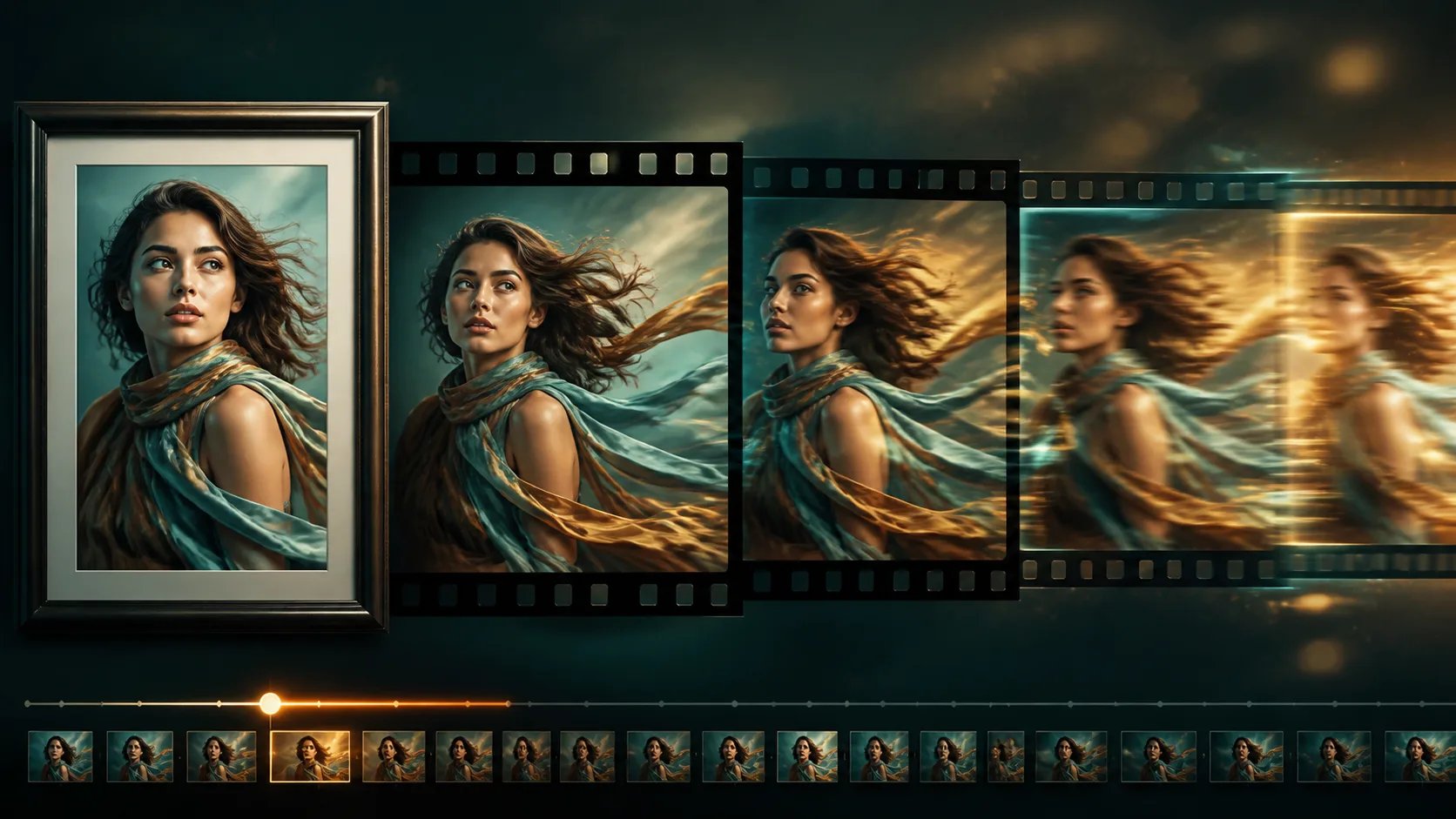
An AI image to video generator takes a single still image and animates it into a short moving clip. Instead of building a video from scratch, you upload one photo, describe the motion you want, and the model generates the frames between. It reads your picture as the first frame and extends it — inferring how the scene would move and adding camera moves, drifting light, and lifelike motion — so a static image becomes a video you can play and download. Nothing is filmed; the movement is generated from the single frame you provide, which is what sets an AI image to video generator apart from a traditional video editor.
Why use an AI image to video generator?
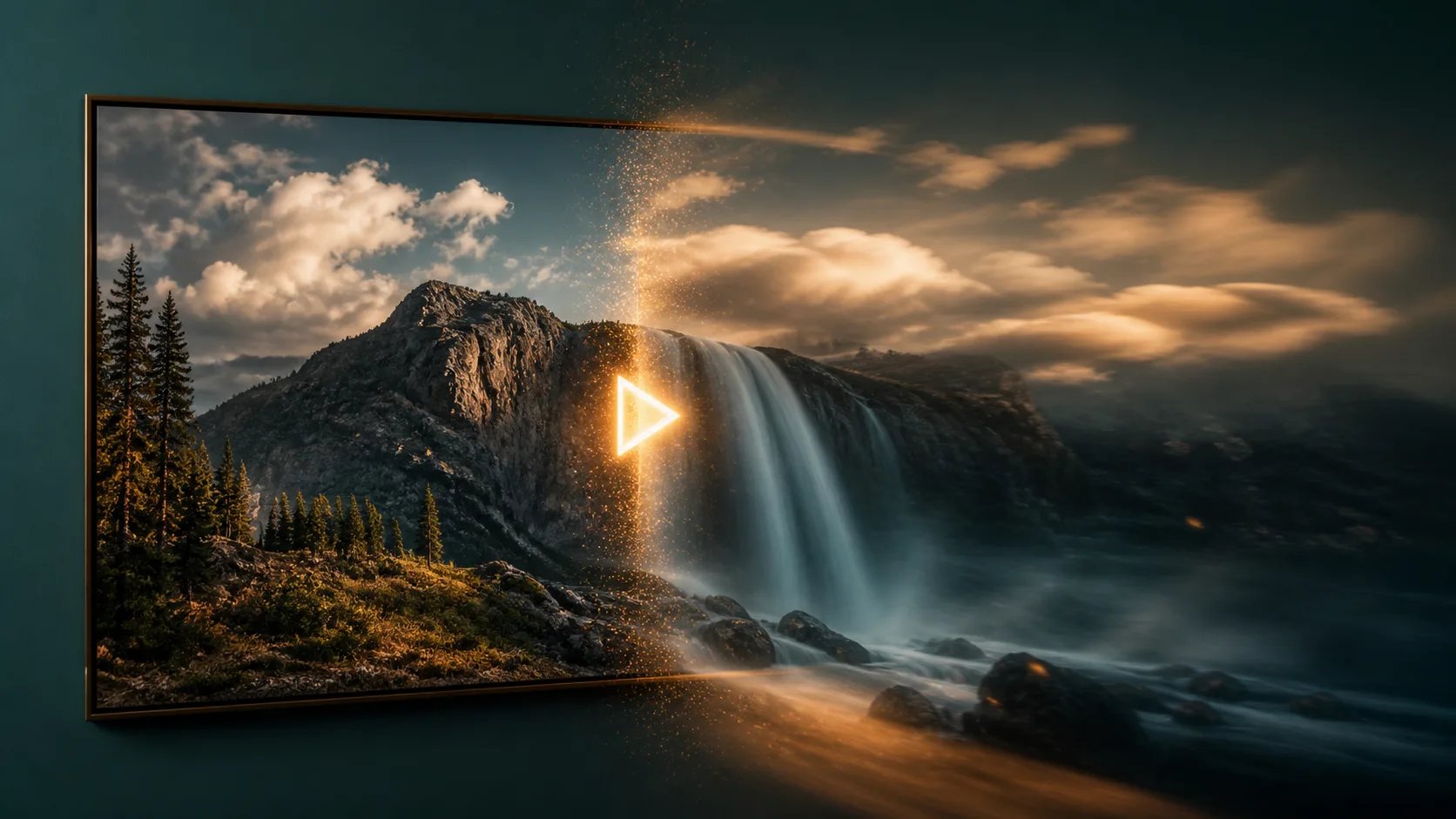
One good image is often all you have — a product shot, a portrait, an illustration. An AI image to video generator turns that single asset into motion without a camera, actors, or an editing timeline. Describe the movement in plain words and it animates the frame, so you can make short clips for social posts, ads, or presentations from pictures you already own. It works across many kinds of source images: a face, an object on a plain background, a landscape, or a piece of artwork. Because the clip starts from your own image, the result stays close to the look you uploaded rather than inventing an unrelated scene.
Stuck with a photo when you need a video?
Making video the traditional way means filming, or wrestling a timeline full of tracks and keyframes just to add a little movement. When all you have is one image, that workflow is overkill. The AI image to video generator skips it: upload the image, describe the motion, and it animates the shot for you — no footage to shoot and no editing software to learn. You stay in control of the movement through the prompt, so a slow zoom, a gentle pan, or wind through the scene is a sentence away instead of an afternoon of editing.
How to use the AI image to video generator
Turn a still image into a short clip in three steps.
- 1
Upload your image
Sign in and upload the photo you want to animate — a JPG, PNG, or WebP. It becomes the first frame of your video.
- 2
Describe the motion
Type the movement you want — a slow zoom, drifting clouds, hair in the wind — or pick a motion preset to start.
- 3
Generate and download
The AI image to video generator renders a short clip from your image. Play it, then download the video as an MP4.
Bring your image to life
Upload a photo and let the AI image to video generator animate it into a short video.
AI image to video generator FAQ
It turns a single still image into a short animated video. You upload one photo, describe the motion, and it generates a clip that uses your image as the first frame.
You can upload a JPG, PNG, or WebP image. The generator uses it as the starting frame and animates forward from there.
Both. The image sets the scene and the text prompt tells the model how to move it — a zoom, a pan, wind, or subtle life. A motion preset can fill in the prompt if you are not sure where to start.
It produces a short clip, up to about 15 seconds at 720p. That length suits social posts, ads, and quick demos rather than long-form footage.
Yes. Sign in to use the AI image to video generator, and each generation runs on your credits. Video jobs use more credits than still images because they render many frames.
Yes. Once the clip is ready you can play it and download it as an MP4 to use wherever you need it.