
Your business card draft, generated from text
Describe the role, brand mood, layout, colors, and short service line. The generator creates a static card image you can review and refine.
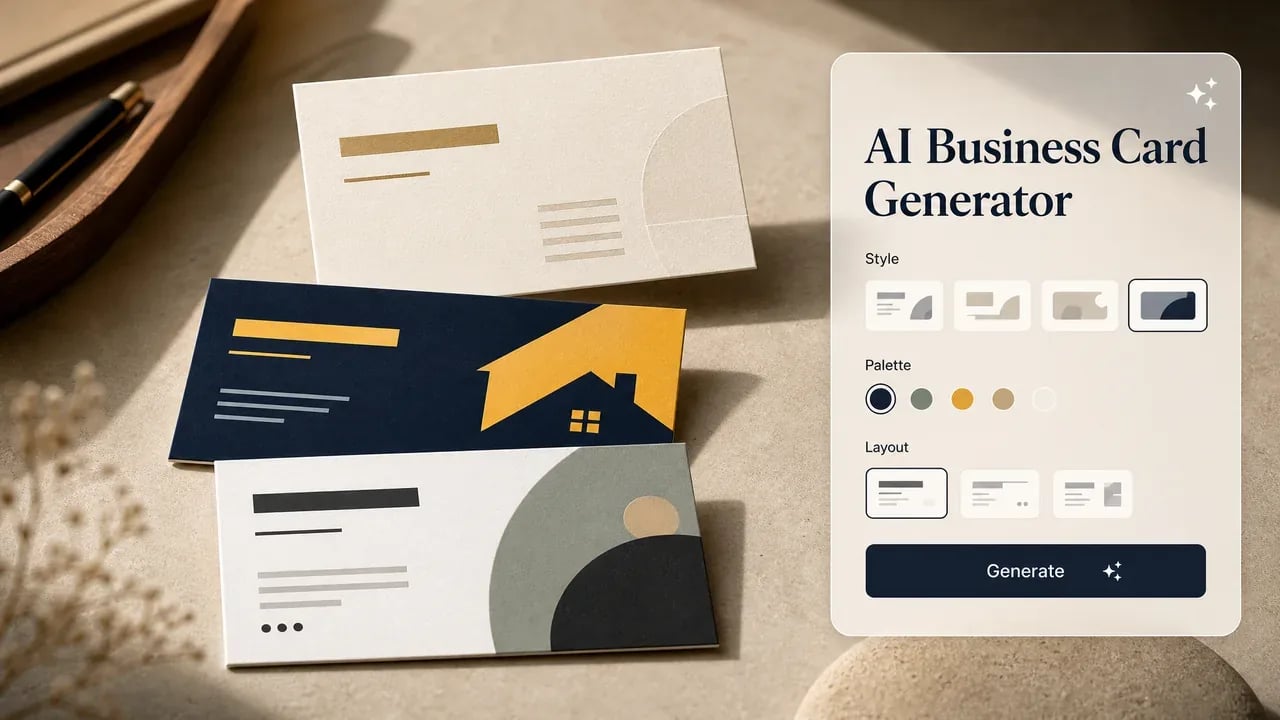
AI Business Card Generator — Card Layouts
Turn a short brand brief into a horizontal business card visual draft. Explore layout, typography, color, and style, then proofread every detail before printing or sharing.
What Is an AI Business Card Generator?
An AI business card generator turns a written brand brief into a flat card image draft. Describe the role, mood, colors, typography, and short service line, then review the generated layout for hierarchy and style. Use it for concept work before checking exact text, QR codes, dimensions, bleed, and print requirements elsewhere.
AI Draft vs Final Business Card Proof
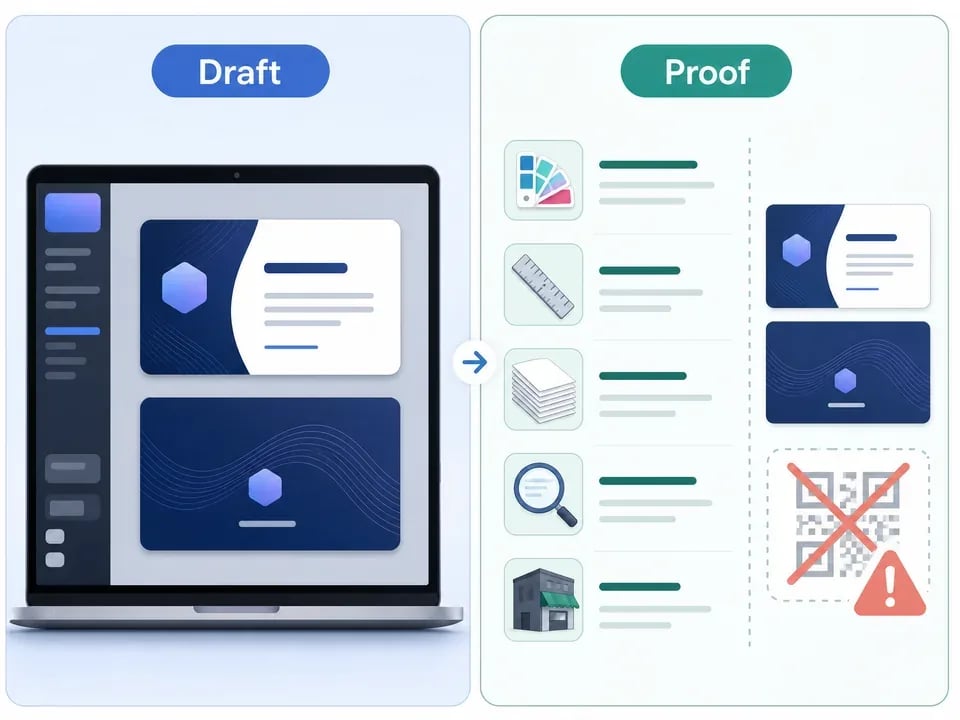
Use the AI business card generator to explore direction quickly, then move exact production details into the right tool before publishing, printing, or sharing.
| Decision | AI draft helps with | Final proof still needs |
|---|---|---|
| Name hierarchy | Compare how the name, role, and service line read at a glance. | Proof spelling, capitalization, legal name, and final title wording. |
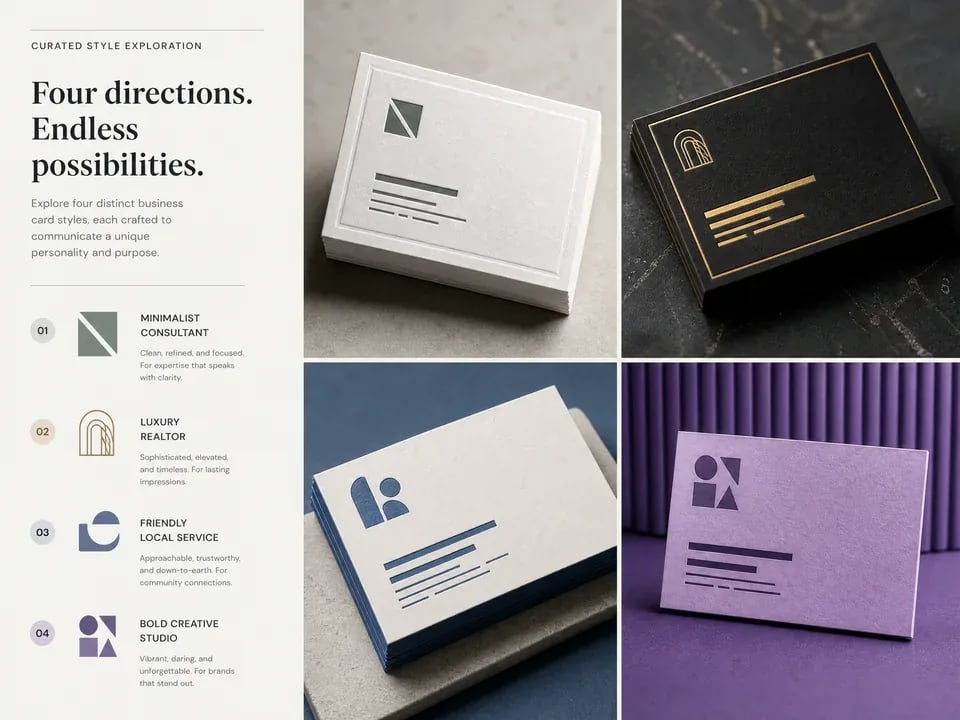
| Brand style | Explore minimal, premium, bold, friendly, or local-service directions. | Match the final logo, brand colors, fonts, and usage rules. |
| Contact area | Reserve spacing for email, phone, web, social handle, or location. | Add real contact details in an editor and check every character. |
| QR or barcode | Plan where a QR code could sit without crowding the card. | Generate and test the real QR code outside the image model. |
| Print setup | Preview margin, contrast, and paper-style direction visually. | Confirm size, bleed, DPI, CMYK or spot color, and export format. |
| Batch variations | Generate several directions for different roles, tones, or audiences. | Use design software for variable data, batch exports, and final approvals. |
Make the Card Readable Before It Looks Clever
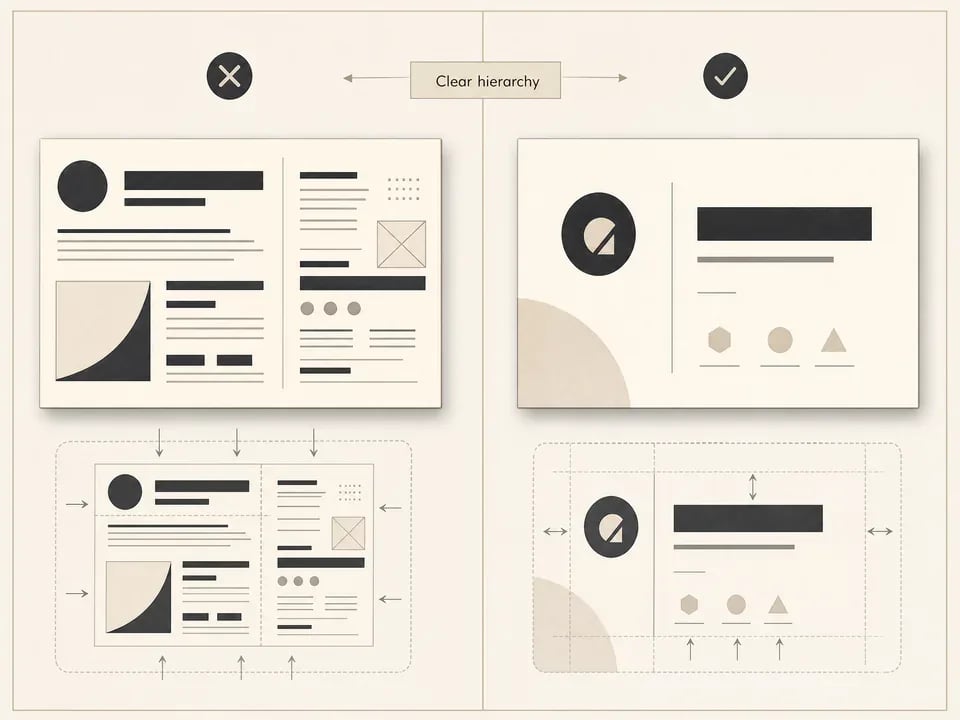
A strong business card draft has to work after the first glance. Keep the layout readable, make the name and role easy to scan, and leave production details for a final proofing step.
- 1. Make the name and role the first read.
- 2. Keep the service line short and specific.
- 3. Use a custom domain email in the final artwork.
- 4. Avoid tiny contact text, crowded angles, fake QR codes, and decorative clutter.
- 5. Ask for generous spacing and one clear visual style.
How to Generate a Business Card Draft
Start with a short brand brief, generate a static image draft, then refine the layout before moving details into your final design or print tool.
- 1
Describe the business
Write the role, audience, tone, colors, layout direction, and one short service line. Keep names and contact copy brief.
- 2
Generate a card image
Use the AI business card generator to explore composition, hierarchy, contrast, typography style, and brand mood.
- 3
Proof before use
Check spelling, dimensions, bleed, color requirements, contact details, and any QR code in a dedicated editor or print workflow.
Business Card Ideas Worth Drafting First
Use AI for fast visual direction when you need options, not when you need a final production file with verified small text.
Consultants and freelancers
Draft polished cards for designers, coaches, writers, advisors, and solo services before rebuilding the final file with verified contact fields.
Real estate and local services
Explore trustworthy layouts for agents, salons, repair services, cafes, clinics, and trades without committing to one print template too early.
Brand identity exploration
Compare how a logo direction, color palette, and typography system might feel on a physical card before expanding the identity.
Where the AI Draft Stops
Use the generator for visual direction, not final production proof. Small text, color shifts, QR codes, spacing, and file setup can still fail after a card looks good on screen. Before using a card publicly, verify spelling, contact details, dimensions, bleed, color requirements, QR codes, and file format with your editor or print shop.
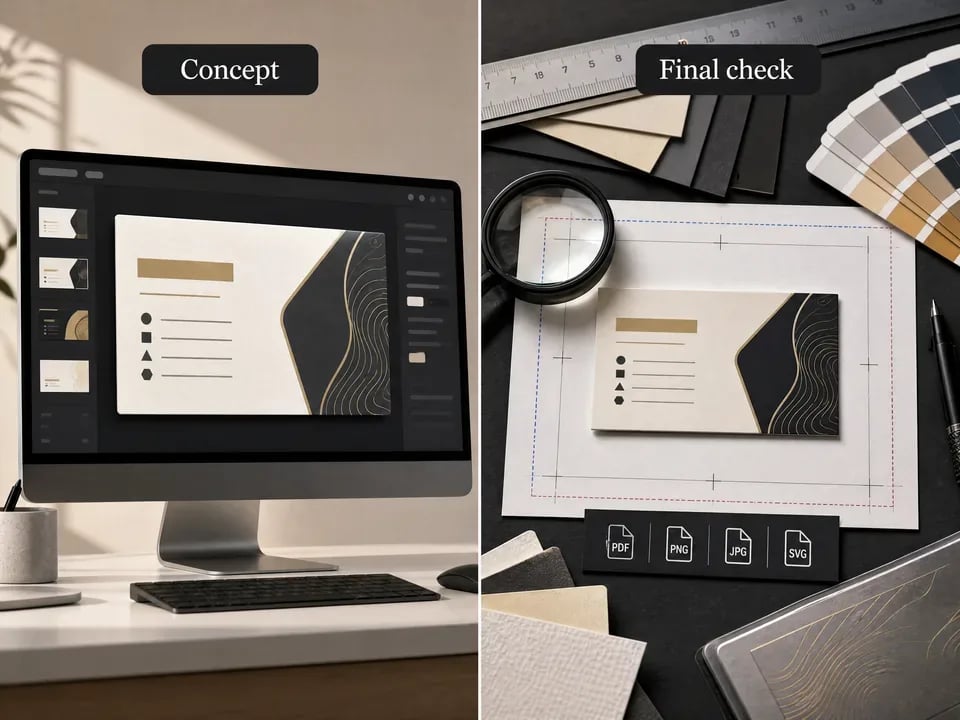
Create a Business Card Direction
Generate a card concept from a short brief, then refine the strongest direction into verified final artwork.
More AI Image Generators
AI Business Card Generator FAQ
It creates a flat static business card image from your prompt. Treat it as a visual draft for layout, hierarchy, color, and style, not as an editable vector, PDF, or print-ready production file.
Yes. Describe the role, brand mood, colors, layout, and short service line. Keep requested text concise, then proofread the generated result before using it anywhere public.
You can open the workspace and write prompts, but generation depends on signing in and the model-specific credits shown in the app. Check the pricing page before large batches.
No. Use the result as a concept draft. Verify dimensions, bleed, CMYK or spot-color requirements, DPI, spelling, text placement, and export format in your final design or print workflow.
Do not rely on generated images for working QR codes, barcodes, phone numbers, email addresses, or tiny contact text. Add and verify those details in a dedicated editor.
The AI logo generator focuses on a standalone mark. The business card generator focuses on card composition around name, role, service line, contact hierarchy, spacing, and brand presentation.